> ## Documentation Index
> Fetch the complete documentation index at: https://helpcenter.recotap.com/llms.txt
> Use this file to discover all available pages before exploring further.
# Account Scoring
> Understand and tune the Recotap account scoring model.
## Account Scoring Model
The **Account Scoring Model** is a crucial feature within the ABM settings that quantifies account engagement based on advertising activities & other intent signals.
This model assigns scores to various actions taken by target accounts, helping you prioritize high-engagement accounts effectively.
## **Benefits of the Scoring Model:**
* Provides a clear, quantitative measure of engagement.
* Ensures recent activity is weighted higher, focusing efforts on active accounts.
* Helps align sales and marketing teams by identifying high-value accounts.
### Use Cases in Recotap:
**Prioritizing Accounts**:
* Identify highly engaged accounts (based on clicks, conversions, impressions, intent signals) and focus marketing efforts on these targets.
**Optimizing Campaigns**:
* Adjust campaigns based on engagement trends.
**Measuring ROI**:
* Use scores to assess the effectiveness of advertising campaigns in driving account engagement.
**Customizable Weighting**
* Teams can assign **higher weight to more critical signals** (e.g., **sales calls might carry more weight than ad clicks**).
**Decay**
* Forget traditional lead scoring method, instead use decay to keep the account score fresh & relevant over time.
 ## Key Attributes in the Scoring Model:
* **Increment**: Defines the points added to the account score for each activity.
* **Maximum Cap**: The upper limit of points that can be assigned for a specific activity.
* **Decay**: Represents the time duration after which the points start reducing to give more weightage to the fresh engagement.
For eg. If No. of days=1000, then 0.001 score will be decreased per day.
* **Score**: Indicates the value based on views, intent topics matched, or the number of qualifying activities according to the rules set for each intent signal.
## Overall Account Scoring Calculation
* The final score is determined by the **sum of individual intent scores** multiplied by their respective weights.
* **Customizable Weighting** – Teams can assign **higher weight to more critical signals** (e.g., **sales calls might carry more weight than ad clicks**).
* The **Overall Score** is a combination of different **intent signals**, each assigned a **weight** based on importance.
* **Each intent signal can be toggled ON/OFF** – Allowing customization of the scoring model.
* **Weights can be adjusted** – Users can increase or decrease the importance of each intent signal.
* **For instance, if each of the intent signals weighs 1** – Meaning all intent signals contribute equally.
> 🔹 **Formula for Overall Score:**
* Overall Score = Weight \*(Advertising Activity)+Weight \*(Website Intent)+Weight \*(G2 Intent)+Weight *(Bombora Intent)+Weight*(Sales Activity)
### Intent Signals Included in the Overall Score:
1. **Advertising Activity** – Engagement from paid ads.
2. **Website Intent** – Behavior on the company’s website (where Recotap tracking code is being added)
3. **G2 Intent** – Buyer intent signals from G2 reviews, comparisons, and category views.
4. **Bombora Intent** – Market-wide research intent (accounts researching relevant topics on external platforms).
5. **Sales Activity** – Engagement with sales teams (e.g., sales calls, email clicks).
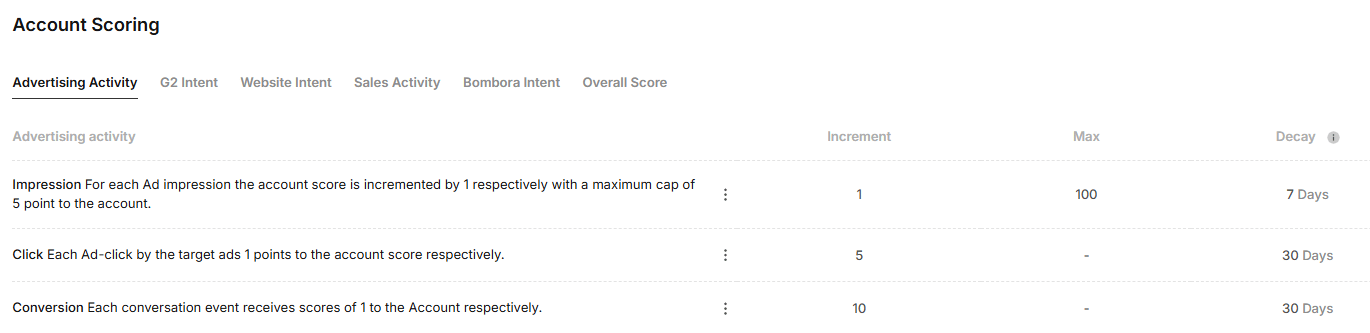
## Advertising Activity Scoring Breakdown:
Each activity scoring can be edited and customized as per one’s own ABM strategy.
1. **Click**:
* **Description**: Each ad click by a target account adds **1 point** to the account score if no increment value is set.
* **Increment**: Recotap’s default value is fixed at **5 points per click**.
* **Maximum Cap**: Not applicable.
* **Decay**: Default value is 30 days.
2. **Conversion**:
* **Description**: Each conversion event (e.g., form submission or specific engagement) adds **1 point** to the account score, if no increment value is set.
* **Increment**: Each conversion contributes **10 points** by default in Recotap.
* **Maximum Cap**: Not applicable.
* **Decay**: Default value is 30 days.
3. **Impression**:
* **Description**: For every ad impression (view), the account score increases by **1 point**, if increment value isn’t set.
* **Increment**: Default value is set at **1 point per impression**.
* **Maximum Cap**: Capped at **5 points per account**.
* **Decay**: Points decay after **7 days** by default.
## G2 Intent Scoring Breakdown:
Each activity scoring can be edited and customized as per one’s own ABM strategy.
Each account is assigned a **score** based on the type of engagement they have shown on G2. Different intent activities can be weighted differently to reflect **purchase intent intensity**.
| **Source** | **Scores** | **What Does It Mean?** |
| ------------------------ | ------------------------------------------------------------------------------------- | ------------------------------------------------------------------------ |
| Category Page Visits | Score assigned are calculated per views | Account visited a G2 category page (low intent). |
| Compared with Competitor | You can mention competitors names & assign a score that is to be calculated per views | The account compared your product with a competitor (medium intent). |
| Search for Alternatives | Score assigned are calculated per views | Account searched for competing products (medium intent). |
| Profile Page Visit | Score assigned are calculated per views | Account visited your **G2 product profile** (high intent). |
| Pricing Page Visit | Score assigned are calculated per views | Account viewed **pricing information**, indicating strong buying intent. |
## Website Intent Scoring Breakdown:
Each activity scoring can be edited and customized as per one’s own ABM strategy.
Website activity is **scored** based on specific rules that define the importance of different pages. The higher the score, the **stronger the intent** from the visitor.
1. **Page-Based Scoring** – Different pages can be assigned different scores depending on their importance.
2. **Decay Mechanism** – Intent scores **reduce over time** if no further engagement happens (e.g., scores decay after **30 days**).
3. **Customization** – Users can **add rules** and define what web pages count as intent signals.
### Steps to add a rule:
1. **Select Web Page Condition:** Choose "Contains" or "Equals".
2. **Enter URL Keyword:** Example: If the URL contains “pricing,” it signals strong intent.
3. **Assign Score:** Increase or decrease score based on importance.
4. **Set Decay:** Define how long the score should remain before it **reduces** (e.g., 30 days).
💡Scores will be calculated from the top & are based on views. Therefore, rearrange the activities based on your priority.
## Sales Activity Scoring Breakdown:
Each activity scoring can be edited and customized as per one’s own ABM strategy.
Each sales-related activity is assigned a **score** based on its level of intent. The higher the score, the **stronger the sales engagement**. Additionally, a **decay period** is applied, meaning that if no further activity occurs within a set timeframe, the score starts reducing.
| **Activity** | **Scores** | **What Does It Means?** |
| ----------------------- | ----------------------------------------------------------------------------------------------- | ------------------------------------------------------------------- |
| Sales Call (>1 minute) | You can edit the conditions or add more & assign scores as per importance | A meaningful conversation happened, indicating **strong interest**. |
| Sales Call (\<1 minute) | Same as above | A brief call, likely **low engagement or rejection**. |
| Sales Call (=1 minute) | Same as above | Could be an okay conversation, likely **medium intent** |
| Opened Email | Scores will be calculated based on the no. of activities that match the defined rule conditions | The prospect opened an email but didn’t engage further. |
| Clicked Link in Email | Scores will be calculated based on the no. of activities that match the defined rule conditions | The prospect engaged with an email but hasn’t taken further action. |
## Bombora Intent Scoring Breakdown:
Each activity scoring can be edited and customized as per one’s own ABM strategy.
* The **Bombora Intent Scoring Model** in Recotap assigns scores based on intent signals captured from Bombora. You will see a list of groups/topics that you have set here. You can assign scores against them.
* Users can edit Bombora rules by adding new intent topics or adjusting scores based on relevance.
* Scores will be calculated based on the number of Bombora Intent Topics that the accounts match
## How to Edit the Account Scoring Model?
* Click the three-dot menu (⋮) against each activity to edit the scores.
* Adjust the values for Increment, Maximum Level, Scores or Decay as per your scoring needs.
* Use the toggles to enable or disable limits (e.g., Maximum Level or Decay).
* Click Update to save changes.
## Determine Account Engagement aligning to the scores:
Engagement scores can be categorized into three levels based on their percentiles:
* **Hot**: Accounts in the top 80th to 100th percentiles (highest engagement).
* **Warm**: Accounts in the 60th to 80th percentiles.
* **Cold**: Accounts in the bottom 0th to 60th percentiles.
This categorization helps prioritize accounts for action.
> **Formula for Calculating Percentiles**
The percentile for a score can be calculated using the following formula:
\` **P=(S−Min / Max−Min)×100**
Where:
* **P** = Percentile
* **S**= The individual score
* **Min** = Minimum score in the range
* **Max** = Maximum score in the range
## Key Attributes in the Scoring Model:
* **Increment**: Defines the points added to the account score for each activity.
* **Maximum Cap**: The upper limit of points that can be assigned for a specific activity.
* **Decay**: Represents the time duration after which the points start reducing to give more weightage to the fresh engagement.
For eg. If No. of days=1000, then 0.001 score will be decreased per day.
* **Score**: Indicates the value based on views, intent topics matched, or the number of qualifying activities according to the rules set for each intent signal.
## Overall Account Scoring Calculation
* The final score is determined by the **sum of individual intent scores** multiplied by their respective weights.
* **Customizable Weighting** – Teams can assign **higher weight to more critical signals** (e.g., **sales calls might carry more weight than ad clicks**).
* The **Overall Score** is a combination of different **intent signals**, each assigned a **weight** based on importance.
* **Each intent signal can be toggled ON/OFF** – Allowing customization of the scoring model.
* **Weights can be adjusted** – Users can increase or decrease the importance of each intent signal.
* **For instance, if each of the intent signals weighs 1** – Meaning all intent signals contribute equally.
> 🔹 **Formula for Overall Score:**
* Overall Score = Weight \*(Advertising Activity)+Weight \*(Website Intent)+Weight \*(G2 Intent)+Weight *(Bombora Intent)+Weight*(Sales Activity)
### Intent Signals Included in the Overall Score:
1. **Advertising Activity** – Engagement from paid ads.
2. **Website Intent** – Behavior on the company’s website (where Recotap tracking code is being added)
3. **G2 Intent** – Buyer intent signals from G2 reviews, comparisons, and category views.
4. **Bombora Intent** – Market-wide research intent (accounts researching relevant topics on external platforms).
5. **Sales Activity** – Engagement with sales teams (e.g., sales calls, email clicks).
## Advertising Activity Scoring Breakdown:
Each activity scoring can be edited and customized as per one’s own ABM strategy.
1. **Click**:
* **Description**: Each ad click by a target account adds **1 point** to the account score if no increment value is set.
* **Increment**: Recotap’s default value is fixed at **5 points per click**.
* **Maximum Cap**: Not applicable.
* **Decay**: Default value is 30 days.
2. **Conversion**:
* **Description**: Each conversion event (e.g., form submission or specific engagement) adds **1 point** to the account score, if no increment value is set.
* **Increment**: Each conversion contributes **10 points** by default in Recotap.
* **Maximum Cap**: Not applicable.
* **Decay**: Default value is 30 days.
3. **Impression**:
* **Description**: For every ad impression (view), the account score increases by **1 point**, if increment value isn’t set.
* **Increment**: Default value is set at **1 point per impression**.
* **Maximum Cap**: Capped at **5 points per account**.
* **Decay**: Points decay after **7 days** by default.
## G2 Intent Scoring Breakdown:
Each activity scoring can be edited and customized as per one’s own ABM strategy.
Each account is assigned a **score** based on the type of engagement they have shown on G2. Different intent activities can be weighted differently to reflect **purchase intent intensity**.
| **Source** | **Scores** | **What Does It Mean?** |
| ------------------------ | ------------------------------------------------------------------------------------- | ------------------------------------------------------------------------ |
| Category Page Visits | Score assigned are calculated per views | Account visited a G2 category page (low intent). |
| Compared with Competitor | You can mention competitors names & assign a score that is to be calculated per views | The account compared your product with a competitor (medium intent). |
| Search for Alternatives | Score assigned are calculated per views | Account searched for competing products (medium intent). |
| Profile Page Visit | Score assigned are calculated per views | Account visited your **G2 product profile** (high intent). |
| Pricing Page Visit | Score assigned are calculated per views | Account viewed **pricing information**, indicating strong buying intent. |
## Website Intent Scoring Breakdown:
Each activity scoring can be edited and customized as per one’s own ABM strategy.
Website activity is **scored** based on specific rules that define the importance of different pages. The higher the score, the **stronger the intent** from the visitor.
1. **Page-Based Scoring** – Different pages can be assigned different scores depending on their importance.
2. **Decay Mechanism** – Intent scores **reduce over time** if no further engagement happens (e.g., scores decay after **30 days**).
3. **Customization** – Users can **add rules** and define what web pages count as intent signals.
### Steps to add a rule:
1. **Select Web Page Condition:** Choose "Contains" or "Equals".
2. **Enter URL Keyword:** Example: If the URL contains “pricing,” it signals strong intent.
3. **Assign Score:** Increase or decrease score based on importance.
4. **Set Decay:** Define how long the score should remain before it **reduces** (e.g., 30 days).
💡Scores will be calculated from the top & are based on views. Therefore, rearrange the activities based on your priority.
## Sales Activity Scoring Breakdown:
Each activity scoring can be edited and customized as per one’s own ABM strategy.
Each sales-related activity is assigned a **score** based on its level of intent. The higher the score, the **stronger the sales engagement**. Additionally, a **decay period** is applied, meaning that if no further activity occurs within a set timeframe, the score starts reducing.
| **Activity** | **Scores** | **What Does It Means?** |
| ----------------------- | ----------------------------------------------------------------------------------------------- | ------------------------------------------------------------------- |
| Sales Call (>1 minute) | You can edit the conditions or add more & assign scores as per importance | A meaningful conversation happened, indicating **strong interest**. |
| Sales Call (\<1 minute) | Same as above | A brief call, likely **low engagement or rejection**. |
| Sales Call (=1 minute) | Same as above | Could be an okay conversation, likely **medium intent** |
| Opened Email | Scores will be calculated based on the no. of activities that match the defined rule conditions | The prospect opened an email but didn’t engage further. |
| Clicked Link in Email | Scores will be calculated based on the no. of activities that match the defined rule conditions | The prospect engaged with an email but hasn’t taken further action. |
## Bombora Intent Scoring Breakdown:
Each activity scoring can be edited and customized as per one’s own ABM strategy.
* The **Bombora Intent Scoring Model** in Recotap assigns scores based on intent signals captured from Bombora. You will see a list of groups/topics that you have set here. You can assign scores against them.
* Users can edit Bombora rules by adding new intent topics or adjusting scores based on relevance.
* Scores will be calculated based on the number of Bombora Intent Topics that the accounts match
## How to Edit the Account Scoring Model?
* Click the three-dot menu (⋮) against each activity to edit the scores.
* Adjust the values for Increment, Maximum Level, Scores or Decay as per your scoring needs.
* Use the toggles to enable or disable limits (e.g., Maximum Level or Decay).
* Click Update to save changes.
## Determine Account Engagement aligning to the scores:
Engagement scores can be categorized into three levels based on their percentiles:
* **Hot**: Accounts in the top 80th to 100th percentiles (highest engagement).
* **Warm**: Accounts in the 60th to 80th percentiles.
* **Cold**: Accounts in the bottom 0th to 60th percentiles.
This categorization helps prioritize accounts for action.
> **Formula for Calculating Percentiles**
The percentile for a score can be calculated using the following formula:
\` **P=(S−Min / Max−Min)×100**
Where:
* **P** = Percentile
* **S**= The individual score
* **Min** = Minimum score in the range
* **Max** = Maximum score in the range