> ## Documentation Index
> Fetch the complete documentation index at: https://helpcenter.recotap.com/llms.txt
> Use this file to discover all available pages before exploring further.
# Notification Settings
> Configure Recotap alerts across in-app, email, and Slack.
export const SupademoEmbed = ({src, title = "Watch interactive guide"}) => {
const [show, setShow] = useState(false);
if (!show) {
return
;
}
return ;
};
## Notification Settings
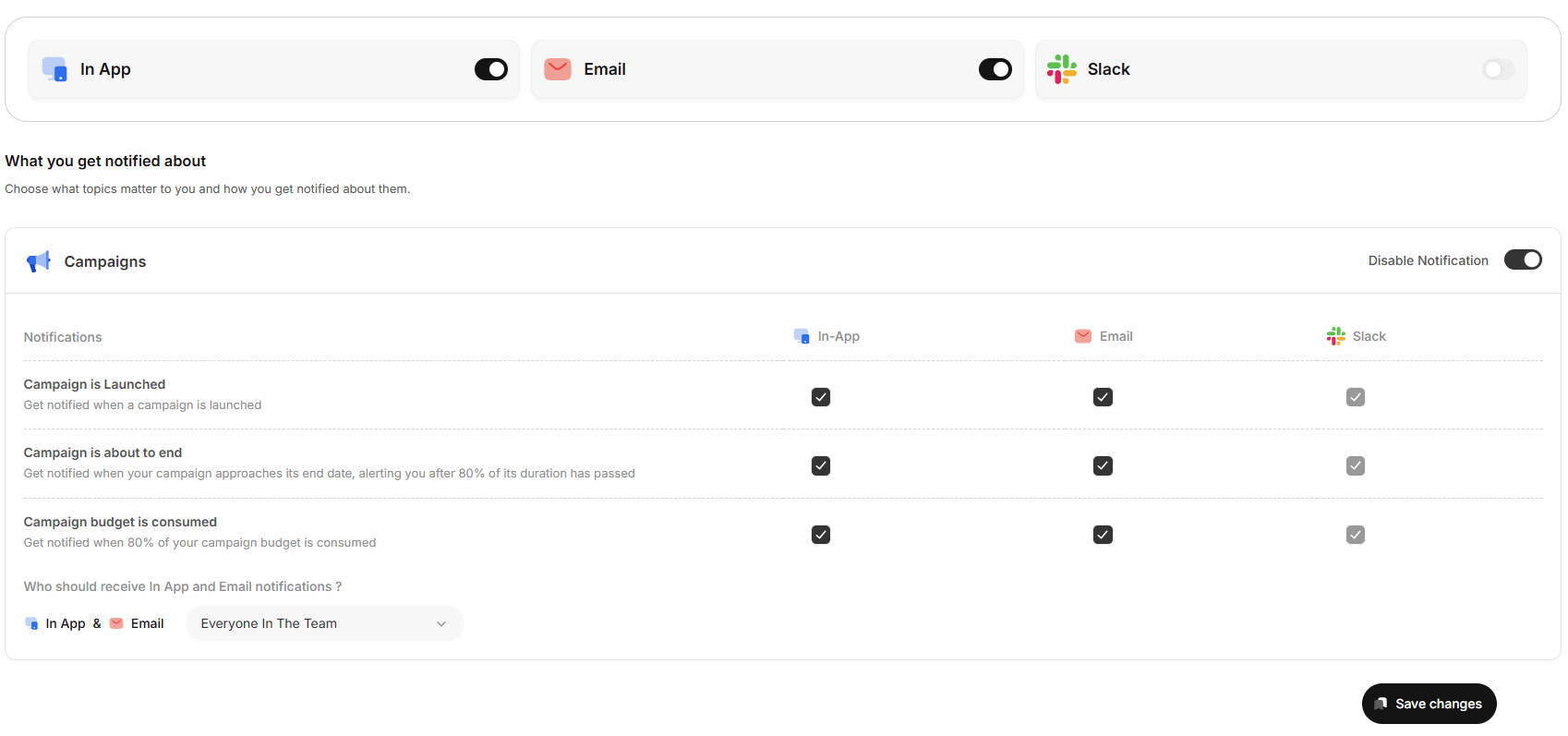
Notification Settings in Recotap let you stay informed about important campaign activities—so you can act quickly, reduce risks, and ensure smoother execution.
### 🚀 Why It’s Important
With campaign budgets, timelines, and performance at stake, timely alerts help you:
* Monitor campaign launches without constantly checking the platform.
* Get ahead of issues like budget overruns or missed deadlines.
* Collaborate better by syncing alerts across **In-App**, **Email**, or **Slack**.
### 📡 Choose Your Notification Channels
Each notification can be delivered via:
* ✅ **In-App** (within Recotap UI)
* 📧 **Email** (To your registered Email ID)
* 💬 **Slack** (needs to be Integrated - [See How](/onboarding/slack-integration))
### 🎥 Want to see how to do it?
Watch this quick walkthrough video to learn how to modify your notification preferences in under 60 seconds.
### ⚙️ Quick Steps to Modify Your Notifications
1. Navigate to **Settings → Notifications** in the left panel.
2. Choose your preferred channels at the top: **In-App**, **Email**, or **Slack** (toggle on/off).
3. Under specific categories (e.g., **Campaign Notifications, Imports & Exports related, Webste Intent, etc.** ), select/deselect notifications you want to receive.
4. Use the checkboxes to choose **how** each notification should be delivered.
5. Click **Save Changes** at the bottom to apply your preferences.
> ✅ Tip: You can disable all notifications anytime using the toggle on the top right.