> ## Documentation Index
> Fetch the complete documentation index at: https://helpcenter.recotap.com/llms.txt
> Use this file to discover all available pages before exploring further.
# Create Audience Segments
> Create static or dynamic account segments for precise ABM targeting.
## Audience Segments
An **account segment** is a group of accounts categorized based on any specific criteria such as firmographic/demographic, or engagement level.
These segments are used to organize and target accounts efficiently for marketing or advertising campaigns.
## **Why is it Necessary to Create Segments for Campaigns?**
1. **Personalized Targeting:** Segments allow you to tailor messaging and ads to specific groups, ensuring relevance and higher engagement.
2. **Efficiency:** Helps in organizing accounts into manageable groups, simplifying campaign setup and execution.
3. **Better ROI:** Targeting segments with tailored campaigns improves conversion rates and minimizes wasted ad spend.
4. **Data Insights:** Segments enable performance tracking and insights at a granular level, helping refine strategies for different account groups.
5. **Scalability:** Makes it easier to replicate or optimize campaigns for similar accounts in the future.
> Creating segments is the foundation for any successful Account-Based Marketing (ABM) strategy, ensuring campaigns are precise and impactful.
## Create an Account Segment
There are three primary ways to create audience segments in Recotap:
### **Method 1: During New Account Addition**
Segments can be automatically created while you're uploading target accounts into Recotap. This can happen through:
### a) **File Upload**
When uploading a CSV file of target accounts:
* You'll be prompted to assign these accounts to an existing segment or create a new one.
* You can name the segment (e.g., "Q3 Finance ABM Accounts") during the upload process.
### b) **CRM Sync (e.g., HubSpot, Salesforce)**
When syncing account lists from your CRM:
* You can map specific lists to new segments in Recotap.
* For example, syncing a list named “High Intent - Life Sciences” from HubSpot can directly create a segment with the same name in Recotap.
> ✅ **Tip**: This method is ideal when your account lists are already defined in your CRM or collected via manual targeting efforts.
### **Method 2: From the Segments Page**
You can also create and manage audience segments directly from the **Segments** section within the platform. Here’s how:
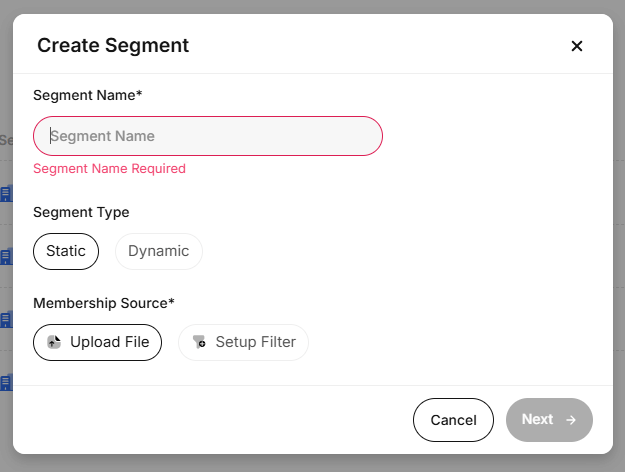
1. Go to **Audience** **→ Segments** and click **Create Segment**.
2. In the pop-up, enter a **Segment Name**, choose **Static** or **Dynamic**, and pick how to add accounts — **File Upload** or **Filters**.
3. Click **Next** to continue to the selected method.
 ### a) Via File Uploads
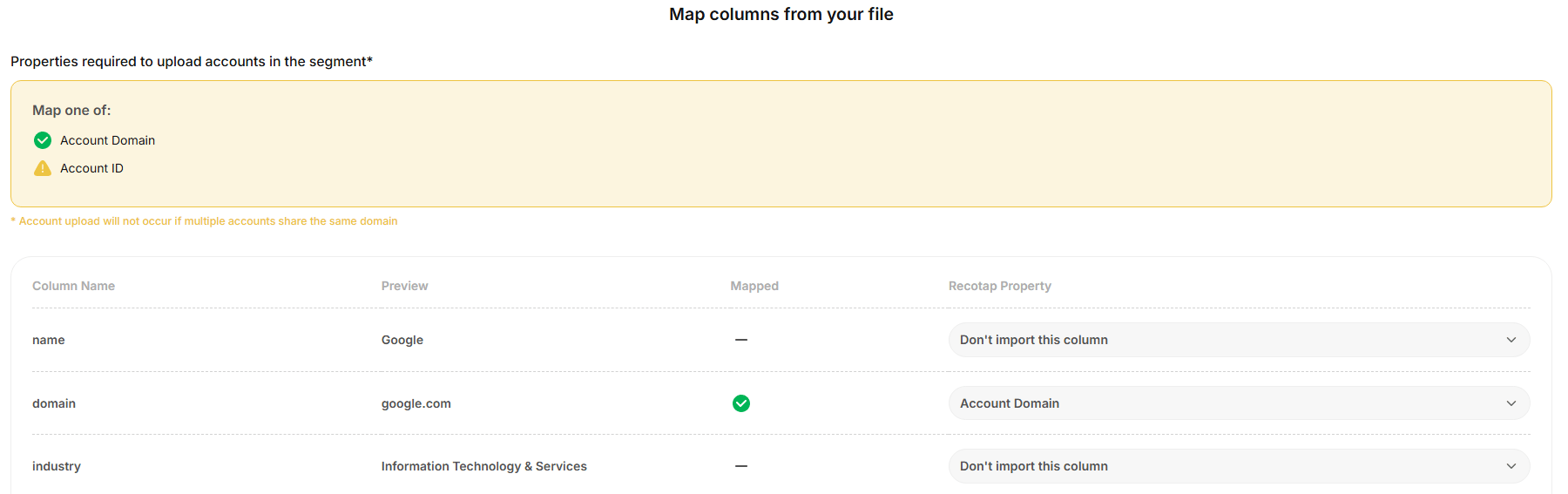
* Upload a **CSV** with account details.
* Map file columns to Recotap properties.
* **Mandatory:** Map either **Account Domain** or **Account ID**.
* Unmapped required fields trigger a warning.
* After mapping, you can **Save as Draft** or **Activate** the segment.
> 🔍 Note: Accounts not in your target list will be ignored.
### a) Via File Uploads
* Upload a **CSV** with account details.
* Map file columns to Recotap properties.
* **Mandatory:** Map either **Account Domain** or **Account ID**.
* Unmapped required fields trigger a warning.
* After mapping, you can **Save as Draft** or **Activate** the segment.
> 🔍 Note: Accounts not in your target list will be ignored.

 ### b) Via Setup Filters
You can build your dynamic or static audience segment using one or more of the following filter categories:
| **Filter Category** | **Description** | **Source** |
| -------------------------------- | -------------------------------------------------------------------------------------------------- | ---------------------------------- |
| **ICP (Ideal Customer Profile)** | Filter accounts by firmographic or technographic fit like industry, company size, tech stack, etc. | Uploaded Data / CRM |
| **Journey Stage** | Target accounts based on their stage in the buyer journey—Awareness, Consideration, Decision. | Recotap-calculated |
| **Account Attributes** | Use synced firmographics such as lifecycle stage, lead status, or region. | CRM Integration (e.g., HubSpot) |
| **Website Activity** | Segment by website visits, visited pages, session count, or visit recency. | Recotap Pixel |
| **G2 Intent** | Include accounts researching relevant topics on G2. | G2 Integration |
| **Bombora Intent** | Filter accounts based on third-party topic research and intent surges. | Bombora Integration |
| **Recotap Ad Activity** | Create segments from ad engagements—impressions, clicks, campaign or creative-specific activity. | Recotap Ad Engine (LinkedIn, etc.) |
| **Deals** | Filter accounts by deal stage, deal size, or deal status (open, won, lost). | CRM Integration (e.g., HubSpot) |
| **Sales Activity** | Segment based on sales interactions like meetings, emails, or last contacted date. | CRM Integration (e.g., HubSpot) |
> **Example: Creating an Advertising-Based Segment**
If you want to target accounts that are actively engaging with your ads, you might use:
* **Recotap Ad Activity** → **Ad Impressions** → **> 5**
* **Within Last** → **7 Days**
You can **filter further**:
* **By Campaign** (e.g., “Product Demo Campaign”)
* **By Creative** (e.g., “Top-performing Static Ad”)
And chain additional logic:
* **AND / OR**: Ad Clicks > 2 within 7 days
**Advanced Logic with Filter Groups**
Recotap lets you build advanced segmentation logic using **Filter Groups**.
1. **Filter Within a Group**
Use multiple conditions to refine a single behavior or activity.
**Example:**
Accounts with:
* Ad Impressions > 5 **AND**
* Clicks > 1
*(Both conditions apply within the same group.)*
2. **Add a New Filter Group**
Create separate logic blocks that combine with **AND / OR** operators.
**Example:**
* **Group 1:** Recotap Ad Activity → Ad Impressions > 5
* **Group 2:** Website Activity → Visited “Pricing Page” in the last 7 days
*(Only accounts meeting both groups’ conditions will qualify.)*
**Pro Tip:**
Use multiple groups to mirror complex buying signals — for example, combining **ad engagement**, **website visits**, and **intent data** from platforms like **G2** or **Bombora**.
### **Method 3: Add Accounts to a Segment from any Accounts List page**
**1. Navigate to the Account List**
Go to any list that shows accounts:
* **Audience → Accounts**
* **Data Signals → Any Intent Signals**
**2. Select Accounts**
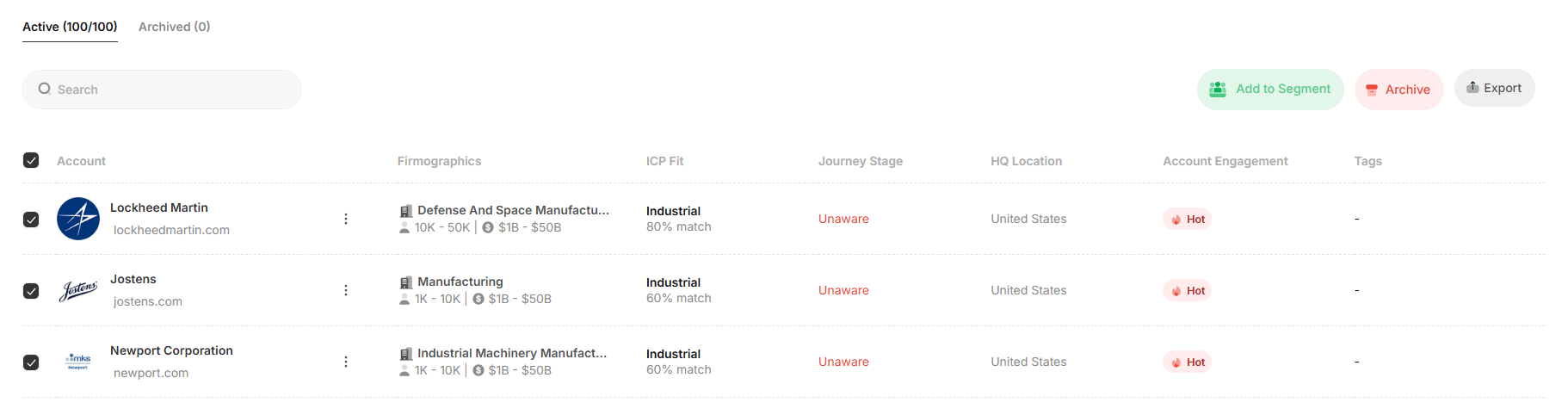
* Tick the accounts you want to add
**or**
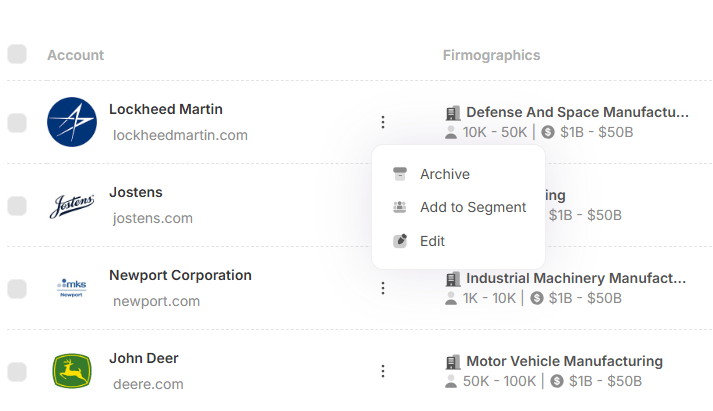
* Click the **⋯ (three-dot menu)** next to an account for more options.
### b) Via Setup Filters
You can build your dynamic or static audience segment using one or more of the following filter categories:
| **Filter Category** | **Description** | **Source** |
| -------------------------------- | -------------------------------------------------------------------------------------------------- | ---------------------------------- |
| **ICP (Ideal Customer Profile)** | Filter accounts by firmographic or technographic fit like industry, company size, tech stack, etc. | Uploaded Data / CRM |
| **Journey Stage** | Target accounts based on their stage in the buyer journey—Awareness, Consideration, Decision. | Recotap-calculated |
| **Account Attributes** | Use synced firmographics such as lifecycle stage, lead status, or region. | CRM Integration (e.g., HubSpot) |
| **Website Activity** | Segment by website visits, visited pages, session count, or visit recency. | Recotap Pixel |
| **G2 Intent** | Include accounts researching relevant topics on G2. | G2 Integration |
| **Bombora Intent** | Filter accounts based on third-party topic research and intent surges. | Bombora Integration |
| **Recotap Ad Activity** | Create segments from ad engagements—impressions, clicks, campaign or creative-specific activity. | Recotap Ad Engine (LinkedIn, etc.) |
| **Deals** | Filter accounts by deal stage, deal size, or deal status (open, won, lost). | CRM Integration (e.g., HubSpot) |
| **Sales Activity** | Segment based on sales interactions like meetings, emails, or last contacted date. | CRM Integration (e.g., HubSpot) |
> **Example: Creating an Advertising-Based Segment**
If you want to target accounts that are actively engaging with your ads, you might use:
* **Recotap Ad Activity** → **Ad Impressions** → **> 5**
* **Within Last** → **7 Days**
You can **filter further**:
* **By Campaign** (e.g., “Product Demo Campaign”)
* **By Creative** (e.g., “Top-performing Static Ad”)
And chain additional logic:
* **AND / OR**: Ad Clicks > 2 within 7 days
**Advanced Logic with Filter Groups**
Recotap lets you build advanced segmentation logic using **Filter Groups**.
1. **Filter Within a Group**
Use multiple conditions to refine a single behavior or activity.
**Example:**
Accounts with:
* Ad Impressions > 5 **AND**
* Clicks > 1
*(Both conditions apply within the same group.)*
2. **Add a New Filter Group**
Create separate logic blocks that combine with **AND / OR** operators.
**Example:**
* **Group 1:** Recotap Ad Activity → Ad Impressions > 5
* **Group 2:** Website Activity → Visited “Pricing Page” in the last 7 days
*(Only accounts meeting both groups’ conditions will qualify.)*
**Pro Tip:**
Use multiple groups to mirror complex buying signals — for example, combining **ad engagement**, **website visits**, and **intent data** from platforms like **G2** or **Bombora**.
### **Method 3: Add Accounts to a Segment from any Accounts List page**
**1. Navigate to the Account List**
Go to any list that shows accounts:
* **Audience → Accounts**
* **Data Signals → Any Intent Signals**
**2. Select Accounts**
* Tick the accounts you want to add
**or**
* Click the **⋯ (three-dot menu)** next to an account for more options.
 **OR**
 **3. Choose “Add to Segment”**
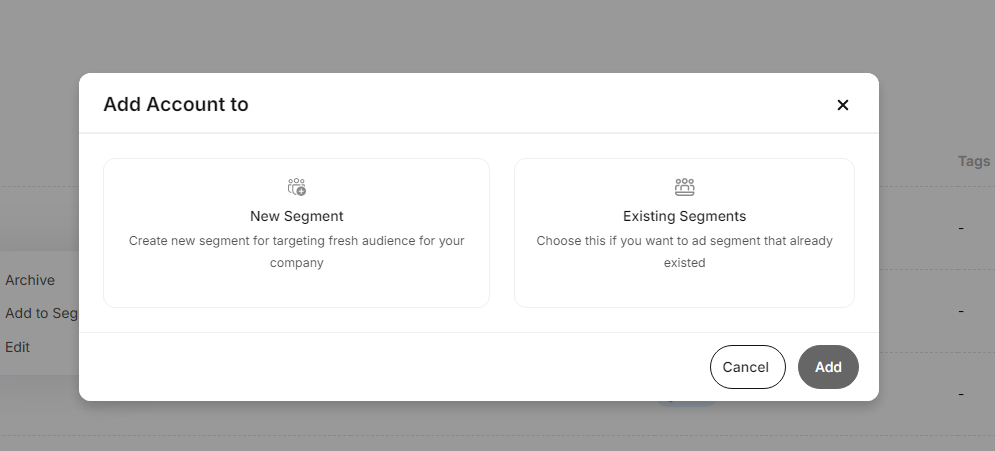
* Select **Add to Segment** from the menu. A pop-up window will appear.
**4. Pick the Segment Type:**
* In the pop-up, you’ll have two options:
* **New Segment:** Create a new one and give it a name.
* **Existing Segments:** Add to an existing one from the dropdown list.
> Note:
> Only **file upload–based segments** appear under *Existing Segments*.
> **Filter-based segments** update automatically based on defined filters.
> You can still **manually remove accounts** from any segment if needed.
**3. Choose “Add to Segment”**
* Select **Add to Segment** from the menu. A pop-up window will appear.
**4. Pick the Segment Type:**
* In the pop-up, you’ll have two options:
* **New Segment:** Create a new one and give it a name.
* **Existing Segments:** Add to an existing one from the dropdown list.
> Note:
> Only **file upload–based segments** appear under *Existing Segments*.
> **Filter-based segments** update automatically based on defined filters.
> You can still **manually remove accounts** from any segment if needed.
 **5. Confirm**
Click **Add** to finalize and save your selection.
## Removing Accounts from a Segment
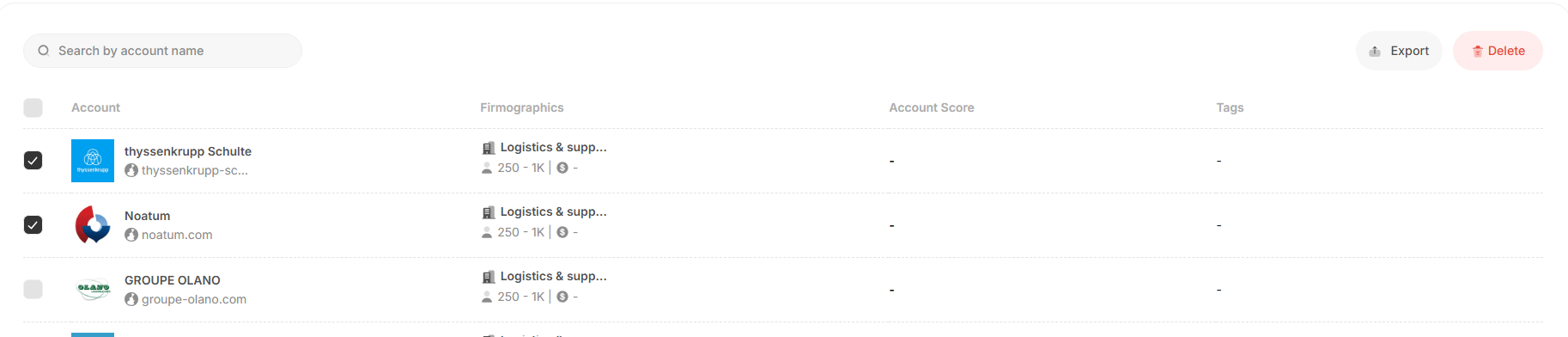
* Go to **Audience → Segments**.
* Open/Click the segment from which you want to remove accounts.
* Select the accounts to delete.
* Click **Delete** in the top-right corner to confirm.
**5. Confirm**
Click **Add** to finalize and save your selection.
## Removing Accounts from a Segment
* Go to **Audience → Segments**.
* Open/Click the segment from which you want to remove accounts.
* Select the accounts to delete.
* Click **Delete** in the top-right corner to confirm.
 ## Editing an Audience Segment
To edit a segment, go to **Audience → Segments**, click the **three-dot menu** next to the segment, and select **Edit**.
* **For filter-based segments** **(dynamic or static):**
You can update the filters and rename the segment. Click **Update** to save changes.
* **For file-based segments**:
* Upload new CSV files to add accounts.
* Duplicate entries are ignored automatically.
* Accounts not in your target list are skipped.
> 🔒 Filters cannot be applied to file-based segments.
## Editing an Audience Segment
To edit a segment, go to **Audience → Segments**, click the **three-dot menu** next to the segment, and select **Edit**.
* **For filter-based segments** **(dynamic or static):**
You can update the filters and rename the segment. Click **Update** to save changes.
* **For file-based segments**:
* Upload new CSV files to add accounts.
* Duplicate entries are ignored automatically.
* Accounts not in your target list are skipped.
> 🔒 Filters cannot be applied to file-based segments.
