> ## Documentation Index
> Fetch the complete documentation index at: https://helpcenter.recotap.com/llms.txt
> Use this file to discover all available pages before exploring further.
# Slack Integration
> Connect Slack to receive Recotap notifications in real time.
## Slack Integration
Stay informed with real-time Recotap activity alerts delivered directly to your Slack channels.
## **Why enable Slack Notifications?**
Real-time notifications help marketers stay on top of campaign activity, troubleshoot faster, and ensure nothing critical—like import failures or campaign status updates—slips through the cracks.
## ✅ Connecting Slack
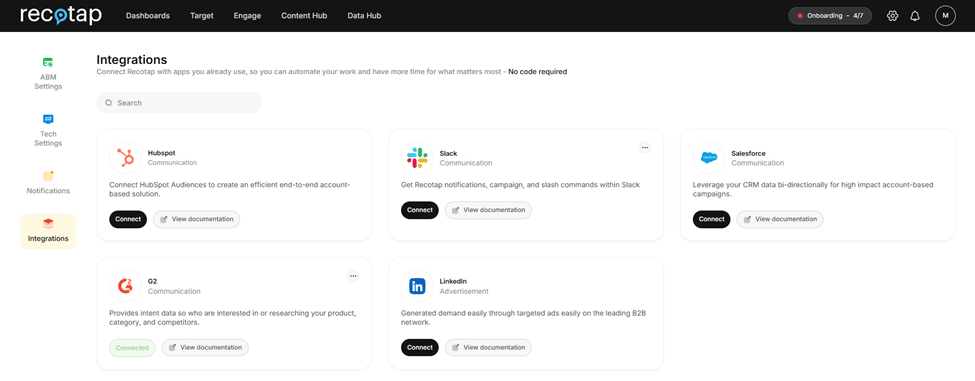 1. **Access Integration Settings:** Go to **Settings → Workspace → Integrations**, and locate the **Slack** card
2. **Connect to Slack**
* Click **Connect** on the Slack card.
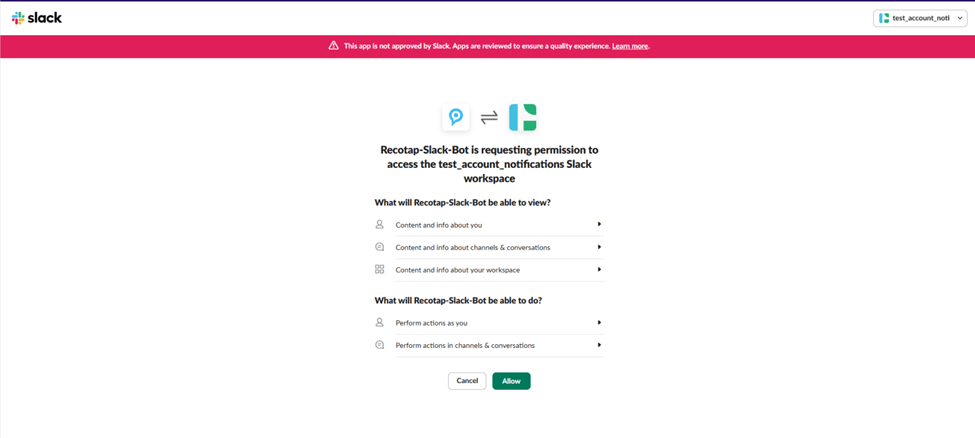
3. **Select Slack Workspace**
* Your default Slack workspace appears automatically.
* Use the dropdown (top-right) to switch if needed.
* Click **Allow** to authorize the Recotap Bot.
1. **Access Integration Settings:** Go to **Settings → Workspace → Integrations**, and locate the **Slack** card
2. **Connect to Slack**
* Click **Connect** on the Slack card.
3. **Select Slack Workspace**
* Your default Slack workspace appears automatically.
* Use the dropdown (top-right) to switch if needed.
* Click **Allow** to authorize the Recotap Bot.
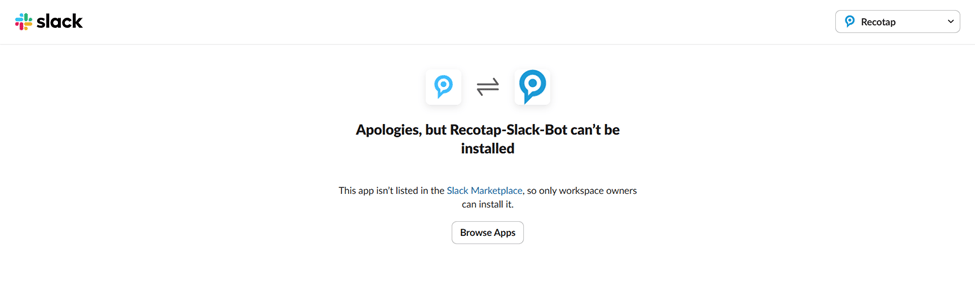
 🔐 *Only the Slack workspace owner can authorize and add the Recotap Bot.*
 4. **Connection Confirmation**
* Once connected, the Slack card will show a **"Connected"** status.
## ⚙️ Configuring Slack Notifications
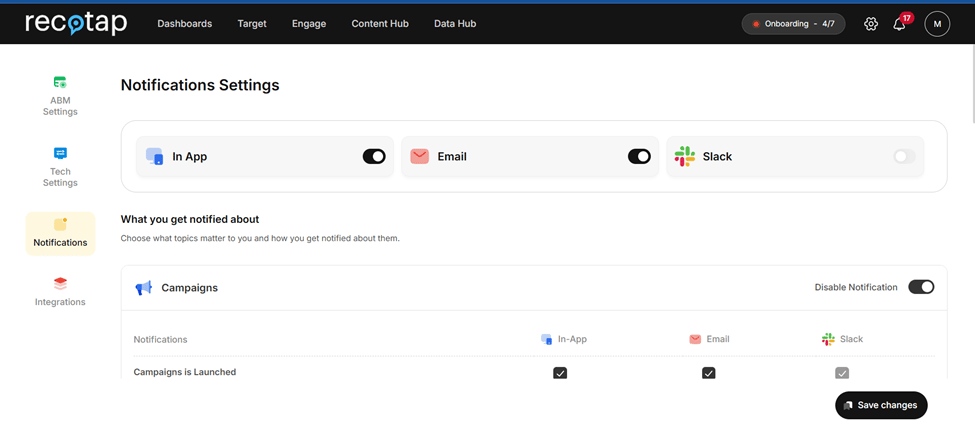
1. **Enable Notifications**
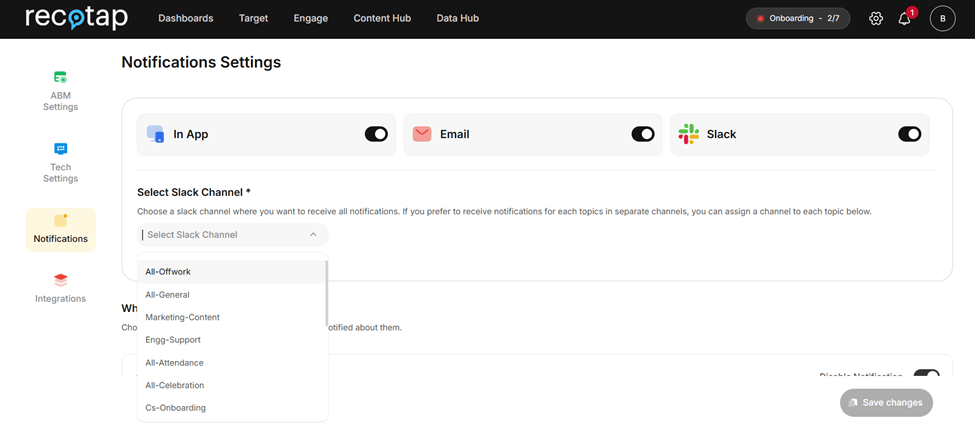
* Go to the **Notifications** section in Settings.
* Turn on the **Slack Notifications** toggle.
4. **Connection Confirmation**
* Once connected, the Slack card will show a **"Connected"** status.
## ⚙️ Configuring Slack Notifications
1. **Enable Notifications**
* Go to the **Notifications** section in Settings.
* Turn on the **Slack Notifications** toggle.
 2. **Set a Default Channel** *(Mandatory)*
* Choose the Slack channel to receive all notifications.
2. **Set a Default Channel** *(Mandatory)*
* Choose the Slack channel to receive all notifications.
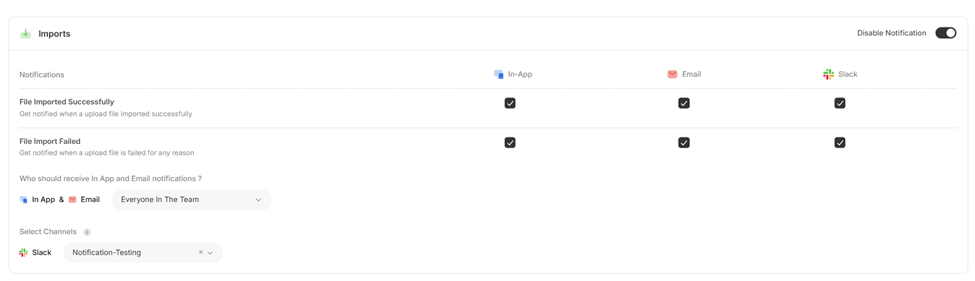
 3. **Customize by Topic** *(Optional)*
* Assign different channels for specific topics.
* Uncheck topics (e.g., *Import Failed*) to disable Slack alerts for them.
3. **Customize by Topic** *(Optional)*
* Assign different channels for specific topics.
* Uncheck topics (e.g., *Import Failed*) to disable Slack alerts for them.
 ## 📝 Additional Notes
* Notifications are sent in real-time as events occur.
* You can update or disable channel preferences anytime from settings.
## 📝 Additional Notes
* Notifications are sent in real-time as events occur.
* You can update or disable channel preferences anytime from settings.