

Slack Integration
Stay informed with real-time Recotap activity alerts delivered directly to your Slack channels.
Why enable Slack Notifications?
Real-time notifications help marketers stay on top of campaign activity, troubleshoot faster, and ensure nothing critical—like import failures or campaign status updates—slips through the cracks.✅ Connecting Slack
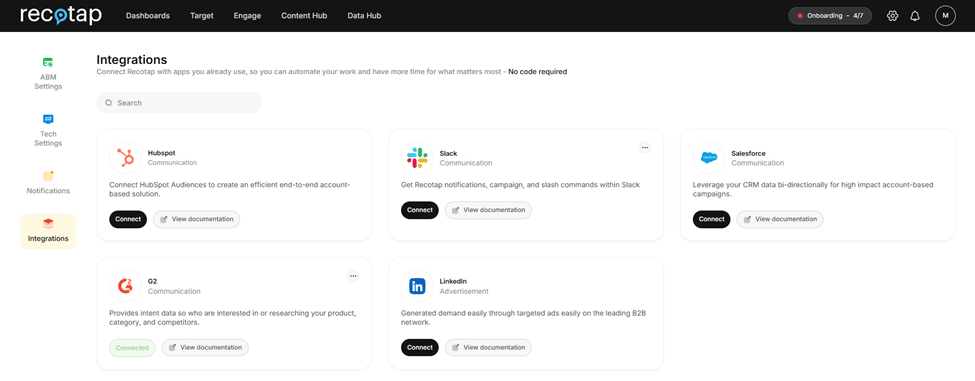
- Access Integration Settings: Go to Settings → Workspace → Integrations, and locate the Slack card
- Connect to Slack
- Click Connect on the Slack card.
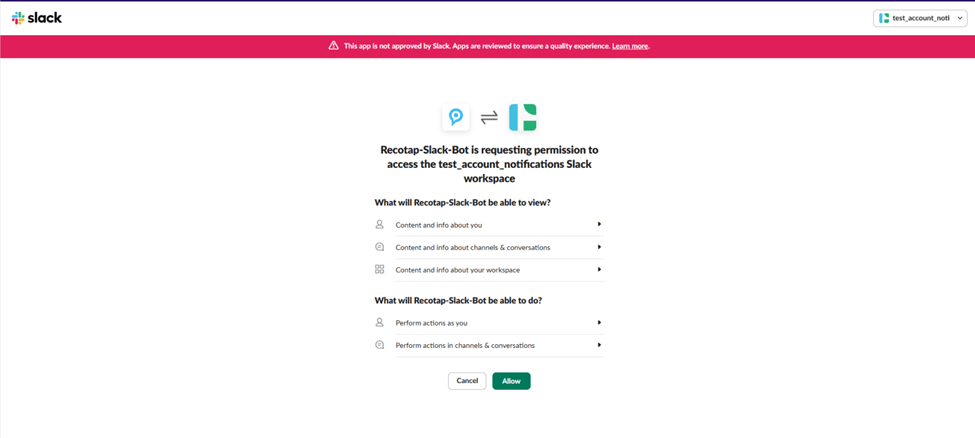
- Select Slack Workspace
- Your default Slack workspace appears automatically.
- Use the dropdown (top-right) to switch if needed.
- Click Allow to authorize the Recotap Bot.
🔐 Only the Slack workspace owner can authorize and add the Recotap Bot.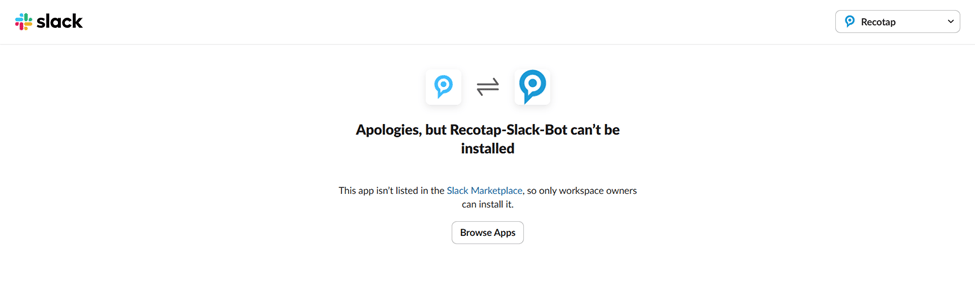
- Connection Confirmation
- Once connected, the Slack card will show a “Connected” status.
⚙️ Configuring Slack Notifications
-
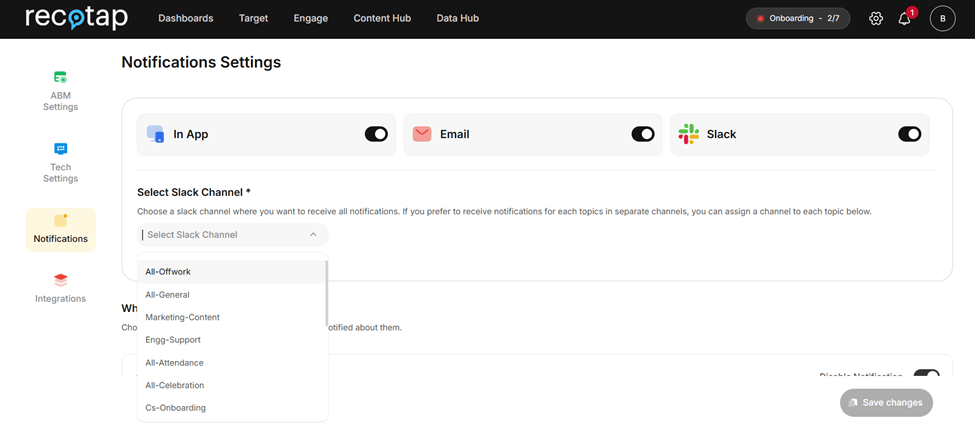
Enable Notifications
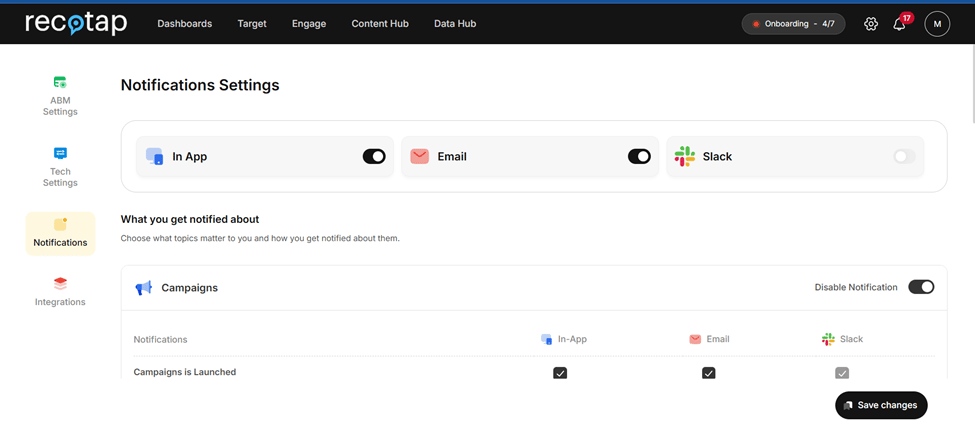
- Go to the Notifications section in Settings.
- Turn on the Slack Notifications toggle.
-
Set a Default Channel (Mandatory)
- Choose the Slack channel to receive all notifications.
-
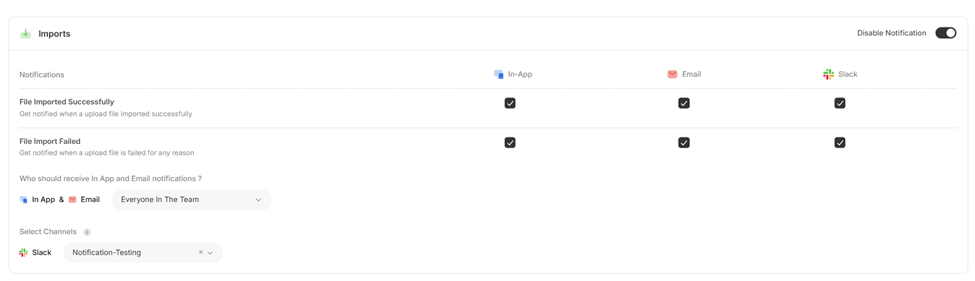
Customize by Topic (Optional)
- Assign different channels for specific topics.
- Uncheck topics (e.g., Import Failed) to disable Slack alerts for them.
📝 Additional Notes
- Notifications are sent in real-time as events occur.
- You can update or disable channel preferences anytime from settings.