

Upload your Accounts to Recotap
The ‘Add Account’ feature empowers ABM teams to expand their target account list within the platform, offering multiple methods to suit diverse operational needs.
Accessibility:
- The feature is accessible from the Target tab on the main account dashboard.
- The prominently placed + Add Account button ensures quick and easy access for users.
Options for Adding Accounts:
- Manual Creation: Add high-priority accounts individually by entering account details.
- File Import: Upload accounts in bulk using .CSV or .XLSX files for efficient data management.
- Sync External Systems: Seamlessly integrate with CRM or external systems for dynamic account synchronization.
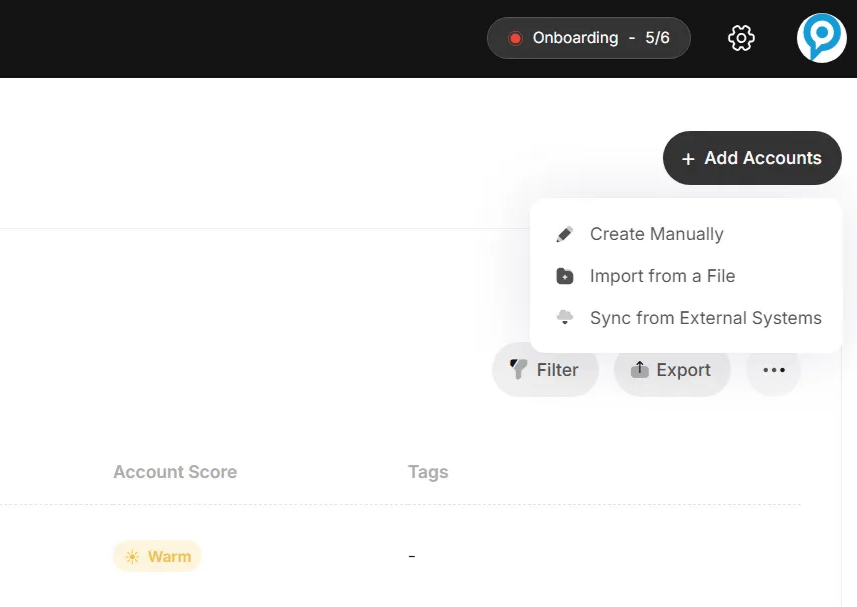
Methods to Add Accounts
1. Manual Creation:
Access an interactive, step-by-step guide to manually create accounts:
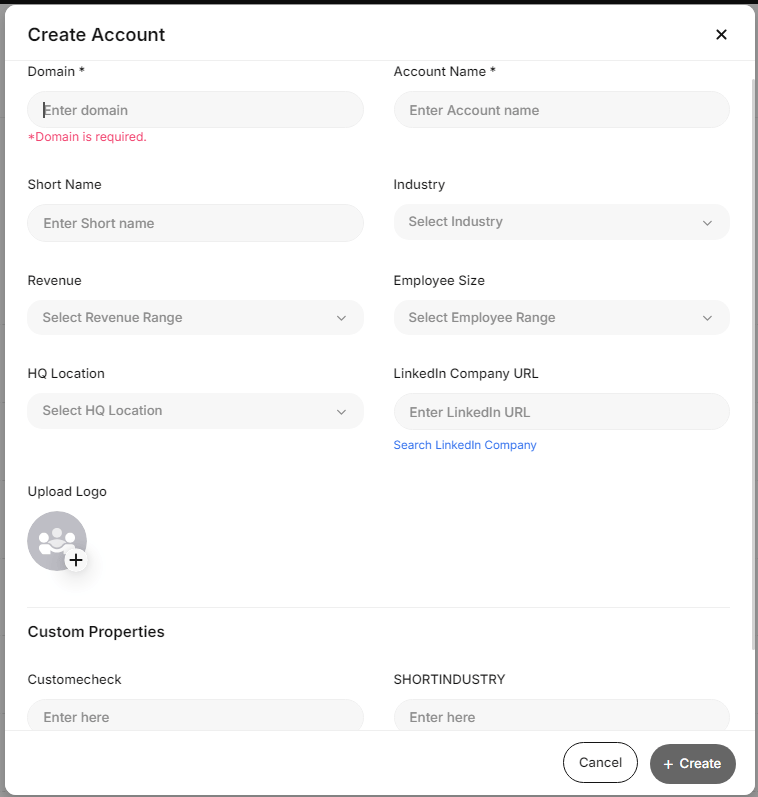
- Initiate: Click ‘+ Add Account’ from the Account Dashboard → choose ‘Create Manually’.
-
Required Fields:
- Domain: Enter the official domain name.
- Account Name: Add the full legal name.
-
Additional Details:
- Short Name: Common or abbreviated version (used in personalized creatives).
- Revenue: Select the revenue range.
- HQ Location: Search and set headquarters.
- Logo: Use ‘Upload Logo’ to add a visual identifier.
-
Custom Properties:
Click ‘+ Add New’ to create additional fields.
- Field Type: Choose (text, date, number).
- Field Label: Name the property clearly.
- Optional (Client-Specific) Fields: Lifecycle Stage • Close Date • Website URL • City • Phone Number
2. File Import:
Access an interactive, step-by-step guide to file import:
- Upload a file to bulk add or update accounts.
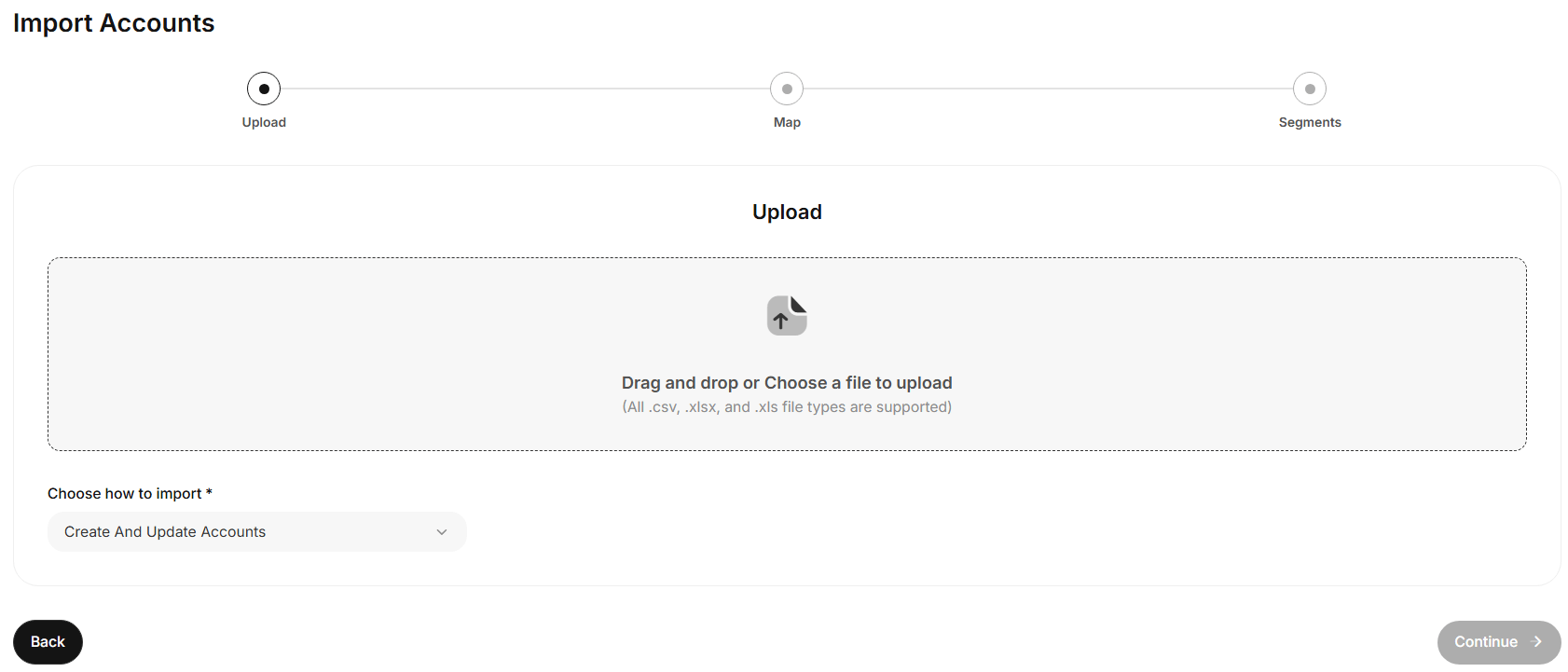
- Click “Import from a File” to open the Import Accounts section.
- Choose an import type: Create, Update, or Create & Update.
- Supported formats: .csv, .xlsx, .xls.
- Drag and drop or browse to upload, then map fields to Recotap properties.
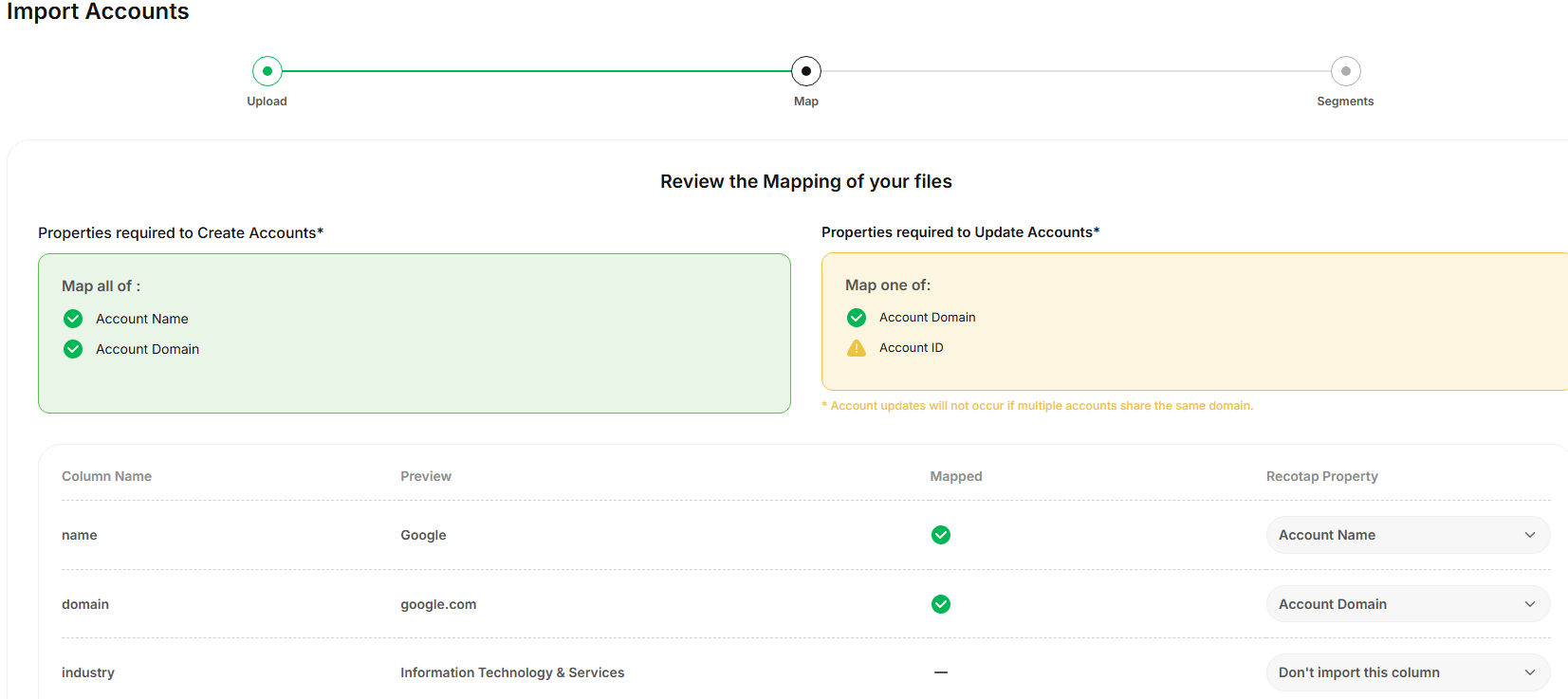
Steps for Mapping:
- Identify Required Fields:
- Map all mandatory fields (e.g., Account Name, Domain, Account ID) to proceed.
- Review Columns:
- Check uploaded column names and data preview to ensure accuracy.
- Map Data:
- Match each column to the right Recotap property from the dropdown.
- ✅ Green = valid mapping ❌ Red = error.
- Fix Errors:
- Correct mismatched fields or re-upload after adjusting data.
- Optional Fields:
- Map non-mandatory or custom fields as needed or skip them.
- Proceed once mappings are done.
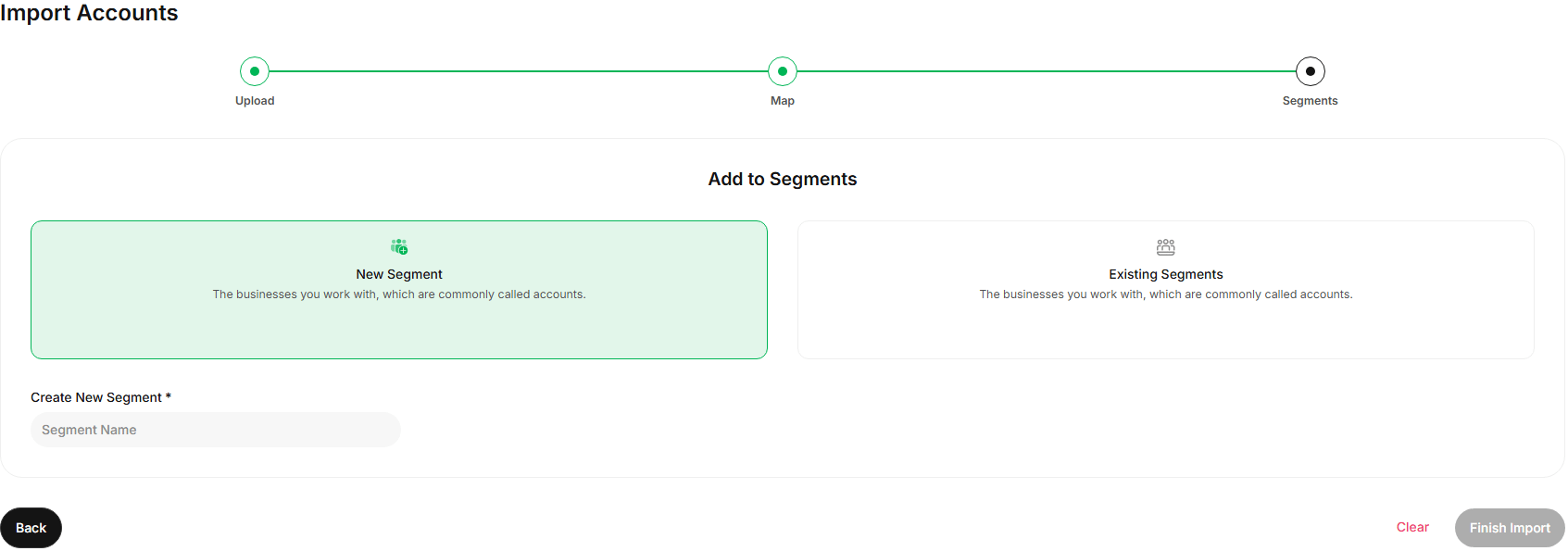
- Optionally, add accounts to a new or existing segment.
- Click ‘Clear’ to skip segment selection before finishing import.
3. Sync from External Systems:
Access an interactive, step-by-step guide to sync accounts from your CRM account:
Steps to Sync Accounts
- Navigate to Sync Option:
- Go to the Target tab and click Sync from External Systems.
- Review Existing Rules:
- Check previously added sync rules and details via the dashboard.
- Create a New Sync Rule:
- Click Create New Sync Rule.
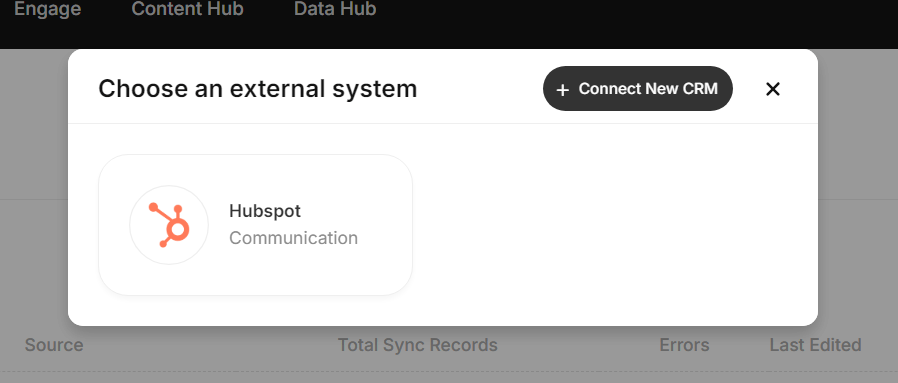
- Select the external system (e.g., HubSpot).
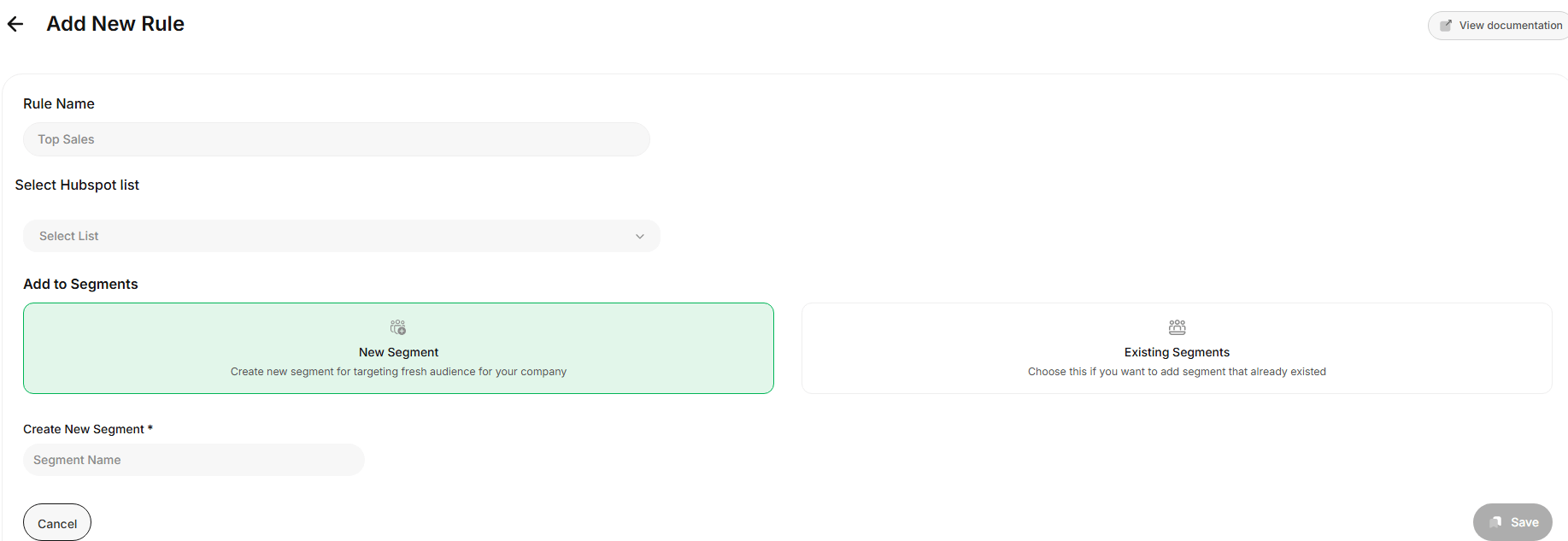
- Configure the Rule:
- Add a Rule Name (e.g., Top Sales Accounts).
- Define a Source:
- HubSpot List: Import predefined lists from HubSpot.
- Filter by Properties: Dynamically filter accounts based on CRM attributes.
- Specify the Destination:
- New Segment: Create a new audience segment.
- Existing Segment: Add accounts to an existing segment.
- Save and Activate:
- Click Save to finalize the sync rule.
- Data will sync automatically every 24 hours.
Use Case:By syncing CRM Lists or filtering by properties, you can:
- Align account targeting strategies with CRM data.
- Personalize campaigns for high-value accounts based on dynamic segments.
- Scale ABM efforts with accurate and up-to-date account data.