Optimize via Campaign Reports
The individual reporting section after a campaign launch can be accessed by clicking over the particular campaign.The Reports section provides a centralized view to understand how your campaigns are performing across multiple dimensions.
Watch a quick guide on how to optimize the campaign via Reports.Here’s a breakdown of the tabs available:
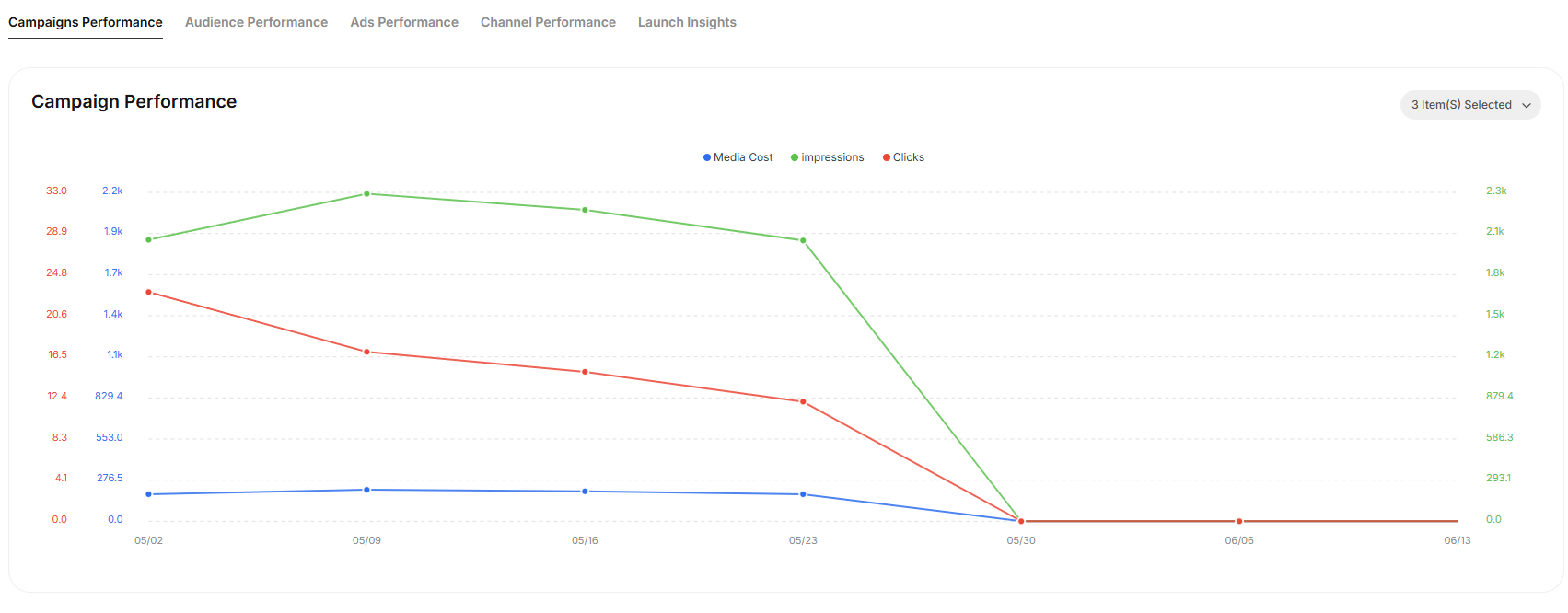
Campaigns Performance
- Metrics Tracked: By default, Media cost, Impressions, Clicks are selected to give a graphical view that shows trends over time, enabling you to analyze the cost-effectiveness and engagement of your campaigns.
- Conversions
- Avg. CPM
- Avg. CPC
- Avg. CTR
- Avg. CPV
Audience Performance
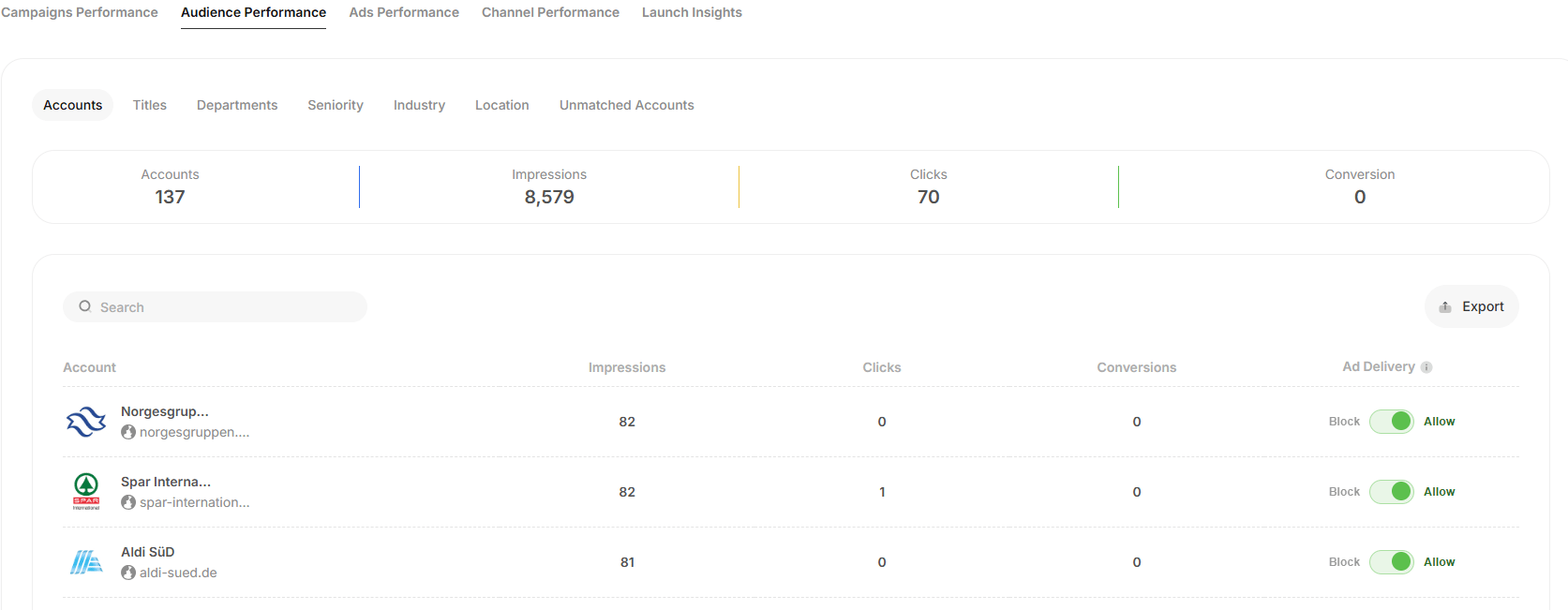
Get a granular view of how your audience is interacting with your campaigns. You will find below segmentation under Audience Performance: Key filters:- Accounts: See impressions, clicks, and delivery status at the account level. You can choose to allow or block delivery for any account.
- Titles: View engagement segmented by job titles.
- Departments: See which departments are getting reached.
- Seniority: Analyze delivery and interaction based on seniority levels.
- Industry: Track performance by industry verticals.
- Location: Monitor reach and engagement by geography.
- Unmatched Accounts: Identify accounts that didn’t have a valid LinkedIn page or there is no match.
Ads Performance
- Metrics Tracked:
- Media cost spent per ad
- Number of impressions and views
- Click metrics
- Video-specific metrics such as view rates and drop-off points (e.g. views at 25%, 50%, 100%)
- Use Case: Performance details by each ad creative, providing insights into which creatives resonate best with the audience.
Channel Performance
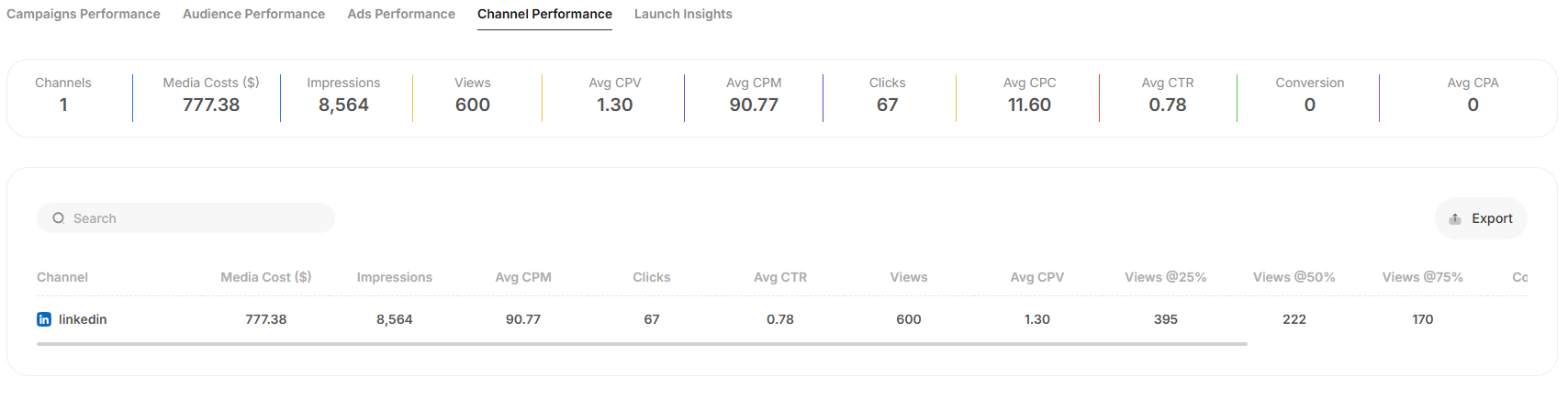
- Metrics Tracked:
- Media Cost spent per channel
- Impressions/Views
- Click Metrics
- Video-specific metrics such as view rates and drop-off points (e.g. views at 25%, 50%, 100%)
- Use Case: Compares performance across channels to identify which platform delivers the best ROI.
Launch Insights
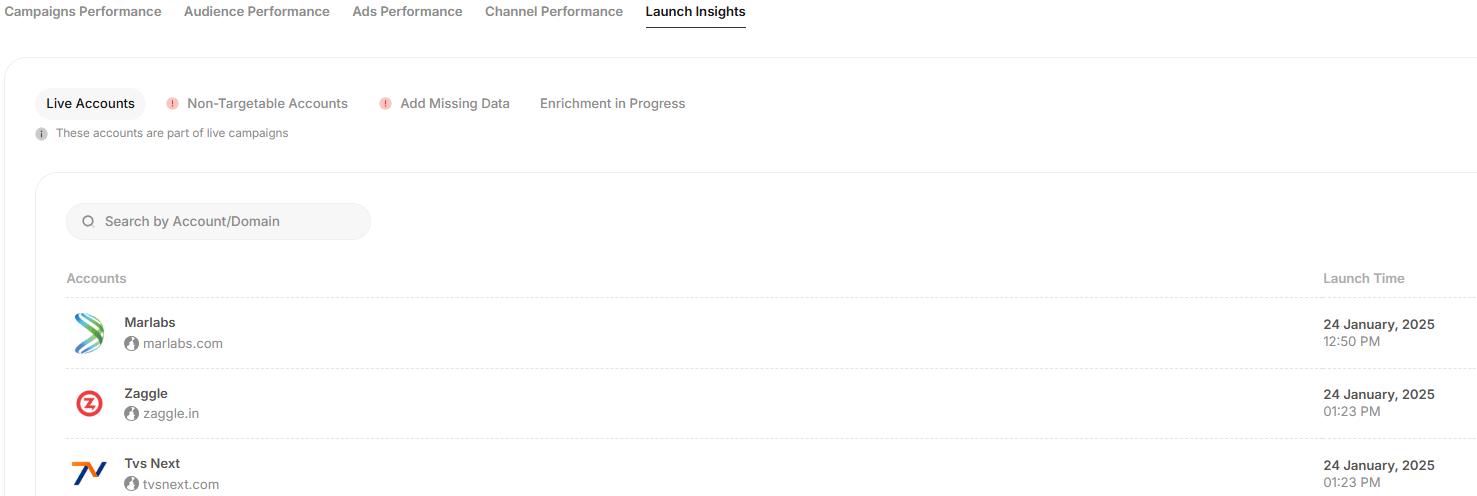
The Launch Insights page provides a detailed report on the status of accounts that are part of the campaign. This section helps troubleshoot delivery and setup issues.Tabs for Account Status
- Live Accounts: Accounts that have successfully gone live with Launch Time i.e. when the campaign was activated for that account
- Non-Targetable Accounts: These accounts within the campaign couldn’t be targeted, likely due to lesser reach.
- Add Missing Data: Shows accounts that are not targetable due to missing values required for personalization. For instance, if a dynamic variable like Industry is used and certain accounts lack this information, those accounts will be listed here.
- Enrichment in Progress: Accounts currently being enriched with missing data in terms of HQ and LinkedIn page.
Search Bar
- Enables users to quickly find accounts by entering their domain or account name.